 Grablet
Image galleries
The photos you want.
One ZIP to keep them in.
See the images a page has loaded, filter out small icons, and choose what to save. Keep the source formats or convert supported images on desktop.
No account for Grablet. No watermarks. Website access explained.
This guide is for desktop Chrome, Edge and Firefox. Check Firefox for Android limitations.
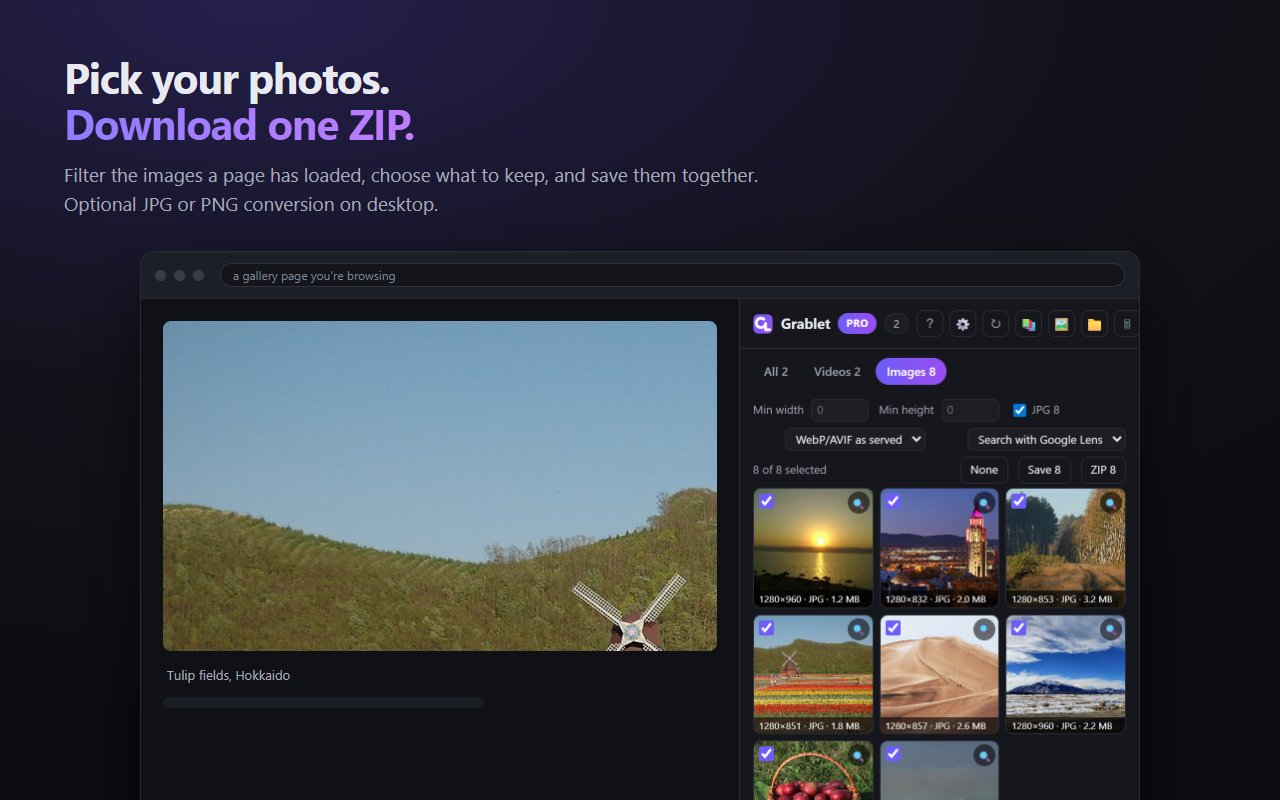
Download images from a page in three steps
- Load the pictures you wantInstall Grablet and open the gallery. View the photos so the page loads them. On another website, enable Grablet for that site when prompted.
- Open Images and selectUse the Images tab to choose photos. Filter by size or type to remove small icons and other images you do not need.
- Choose ZIP or individual filesChoose ZIP for one archive, or Save for separate files. Leave the original-format option selected to preserve the image bytes.
A gallery you can inspect before saving
The Images tab shows previews so you can choose what belongs in your download. On desktop Chrome and Edge (in the side panel) and desktop Firefox (in the sidebar), the Gallery also lets you browse and filter media while keeping the page visible.
Original files, or familiar formats
On desktop, you can convert WebP and AVIF images to JPG or PNG. Conversion changes the file; choose the original format when keeping the source bytes matters. Grablet cannot recover full-resolution originals that the website never makes available.
For very large galleries, keep enough free disk space and use the latest extension release. Mobile download limits and individual image conversion costs still apply.
Before you install
Will it save every photo in an account?
It lists images the current page has loaded. Open carousels and scroll to the photos you want first. It does not automatically crawl an account or fetch unopened pages.
Can I keep images without converting them?
Yes. Keep the original-format option selected. Conversion to JPG or PNG is optional on desktop.
Why is a picture missing or smaller than expected?
The page may have loaded a thumbnail or only part of a carousel. Open the image at its largest available size, then check Grablet again.
Your files stay between the source and you
Ordinary downloads go directly to your device. Grablet does not collect your download history or require an account. Uploads happen only when you choose a feature such as saving to your own cloud drive. Read the privacy details.
Grablet does not support YouTube or DRM-protected services. Save only content you have the right to keep.
Try your first save
Install Grablet, then use the sample image to get familiar with saving.